

Introduction
AI tools are becoming increasingly capable, helping developers with coding, debugging, documentation, and infrastructure management. However, they cannot access servers, databases, or cloud platforms on their own. To securely interact with external systems, Claude uses the Model Context Protocol (MCP).
MCP is an open standard developed by Anthropic that provides a consistent way for Claude Desktop to connect with external tools and services. Instead of building custom integrations for every platform, MCP enables Claude to communicate with supported applications through a single protocol. This allows Claude to retrieve live information, perform supported actions, and provide responses based on real-time data.
What is Claude?
Claude is an AI assistant developed by Anthropic that helps users with coding, writing, debugging, data analysis, and answering technical questions. It understands natural language, making it easy to interact with complex systems through simple conversations.
On its own, Claude responds using the knowledge available to it. When connected to external tools through MCP, Claude can securely access live information from supported applications such as GitHub, databases, file systems, and infrastructure platforms like Kubeara. This extends Claude's capabilities beyond conversation, allowing it to work with real-world systems and data.
How Claude Uses MCP
The Model Context Protocol (MCP) acts as a bridge between Claude and external applications. When a request requires information outside of Claude's built-in knowledge, Claude sends it to an MCP server instead of communicating directly with the service.
The MCP server securely connects to the requested application, retrieves the necessary data, performs supported actions if required, and returns the results to Claude. Claude then presents the information in a clear, conversational format, allowing users to interact with external systems using natural language.
With MCP, Claude can work with connected services to:
- Retrieve live information from external applications
- Query databases and documentation
- Read and manage files
- Monitor deployments and infrastructure
- Automate repetitive workflows
- Respond using real-time data instead of static knowledge
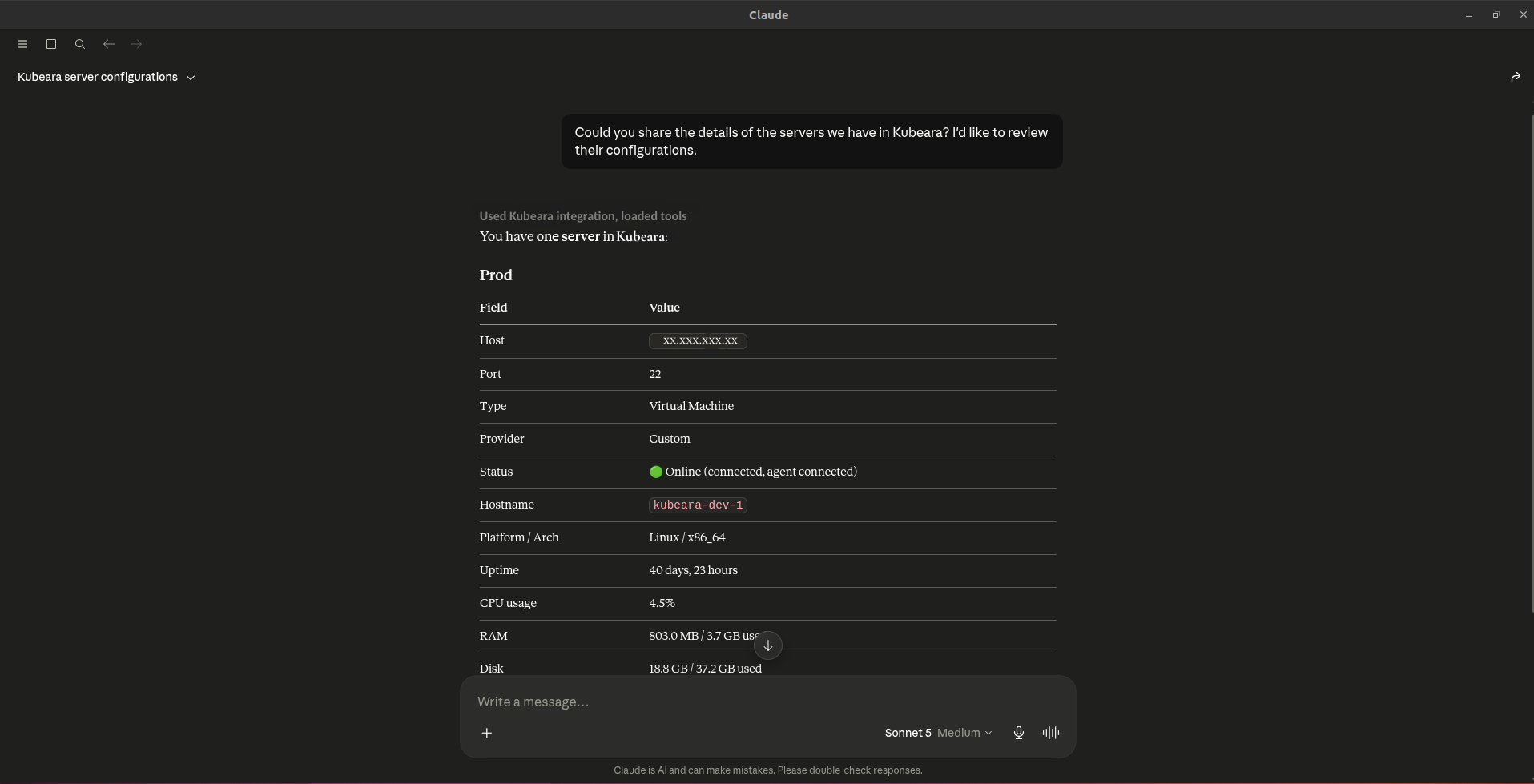
When connected to Kubeara through MCP, Claude can answer questions such as:
- What is the status of my servers?
- This is a deployment ID. Tell me about its Deployment status.
- Which servers do we currently have in Kubeara?
- Show resource usage for my server.
- Tell me about the latest deployment and its status.
Instead of manually checking dashboards, Claude retrieves the latest information from your Kubeara workspace through the MCP server and provides responses based on your live infrastructure.
Using Claude with Kubeara
Kubeara provides a dedicated MCP server that allows Claude Desktop to securely connect to your infrastructure. Once connected, Claude can access live information from your Kubeara workspace and help manage your deployments through natural language conversations.
With the Kubeara MCP server, Claude can:
- Check server status and health
- View deployment information
- Retrieve infrastructure details
- Read live data from your Kubeara workspace
Instead of switching between dashboards or running multiple commands, you can simply ask Claude questions about your infrastructure and receive responses based on your live Kubeara environment.
Connecting Kubeara to Claude Desktop via MCP
Connecting Kubeara to Claude Desktop takes only a few minutes.
Prerequisites
Before you begin, make sure you have:
- Claude Desktop installed
- Node.js installed (required for npx and mcp-remote)
- A Kubeara account with MCP Server enabled
- A Kubeara MCP token generated from the MCP page
For the complete configuration file and detailed installation instructions, visit the official Kubeara MCP documentation at https://app.kubeara.dev/mcp-servers
Configuration Steps
1. Open Claude Desktop.
2. Go to Settings → Desktop App → Developer Options.
3. Under Local MCP Servers, click Edit Config.
4. Add the Kubeara MCP configuration provided in the Kubeara MCP documentation.
5. Replace YOUR_TOKEN_HERE with your generated Kubeara MCP token.
6. Save the configuration file.
7. Restart Claude Desktop.
Verify the Connection
After restarting Claude Desktop:
1. Navigate to Settings → Desktop App → Developer Options.
2. Open Local MCP Servers.
3. Confirm that the kubeara MCP server is listed with a Connected or Running status.
Once connected, start a new Claude conversation and ask questions about your infrastructure. Claude will retrieve live information from your Kubeara workspace through the MCP server and respond with up-to-date server and deployment details.
Conclusion
By connecting Claude Desktop to Kubeara through the Model Context Protocol (MCP), you can manage your infrastructure using natural language instead of manually navigating dashboards or running commands. Claude securely accesses your Kubeara workspace to retrieve live server data, deployment information, and infrastructure status, enabling faster troubleshooting and more efficient operations.
Whether you're monitoring deployments, checking server health, or reviewing your infrastructure, the Kubeara MCP integration transforms Claude into an AI-powered assistant that works directly with your live environment, helping developers and DevOps teams stay productive and informed.