

Introduction
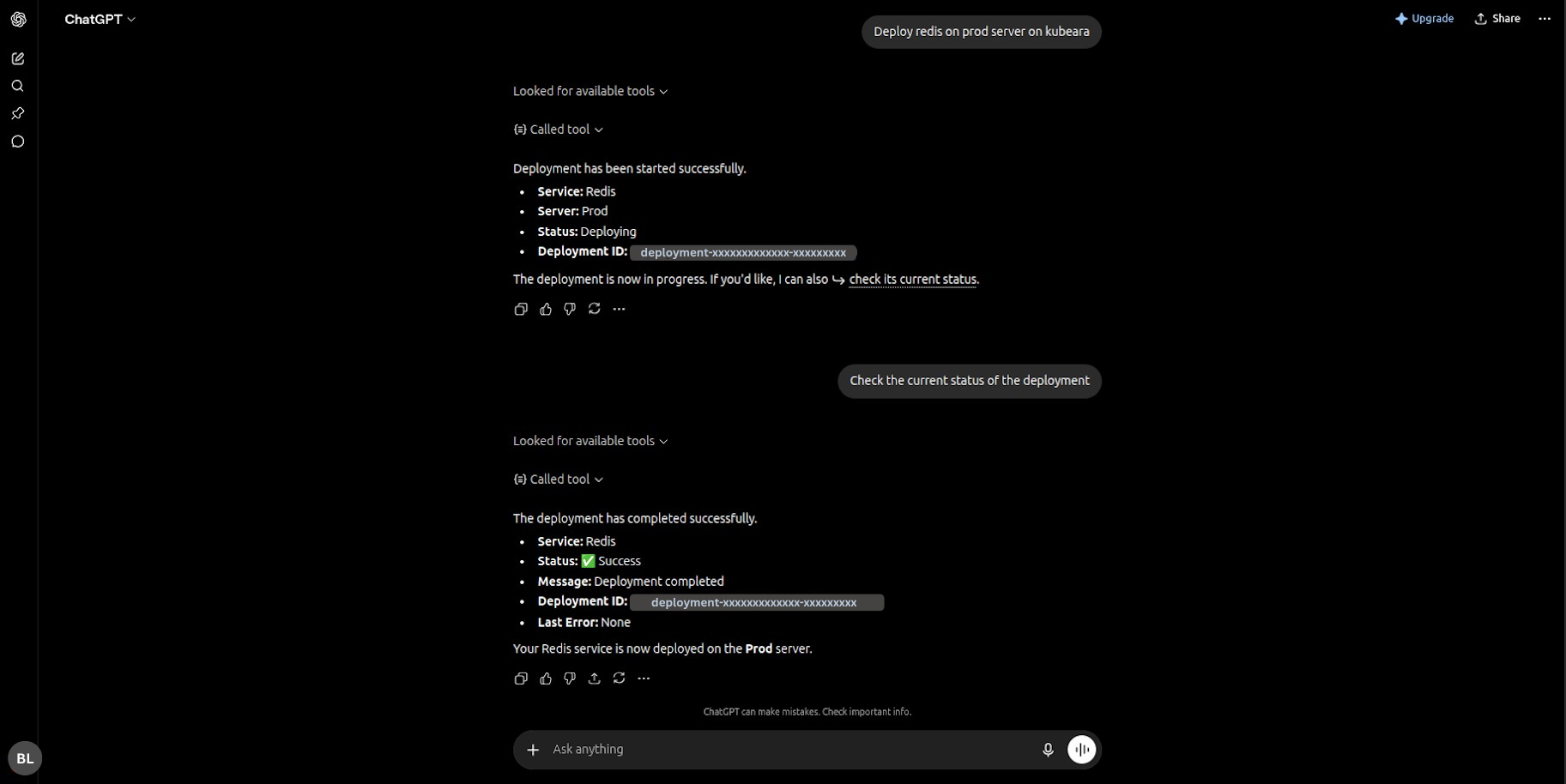
ChatGPT is one of the most widely used AI assistants for writing, coding, debugging, research, and answering technical questions. With the Model Context Protocol (MCP), ChatGPT can go beyond text generation and securely interact with external platforms such as Kubeara.
By connecting ChatGPT to Kubeara through MCP, you can access your deployment infrastructure directly from ChatGPT. Instead of manually checking dashboards or running commands, you can ask ChatGPT to retrieve information about your servers, deployments, applications, and other resources available in your Kubeara workspace.
Unlike desktop AI clients that typically use MCP API keys, ChatGPT connects to Kubeara using OAuth authentication, providing a secure and user-friendly sign-in experience.
What is ChatGPT?
ChatGPT is an AI assistant developed by OpenAI that helps users with a wide variety of tasks, including writing and editing content, generating and reviewing code, explaining technical concepts, troubleshooting errors, summarizing documents, and answering questions across many domains.
With MCP support, ChatGPT can securely connect to external tools and services, allowing it to work with real data instead of relying only on information provided in the conversation.
Why Connect ChatGPT to Kubeara?
Connecting ChatGPT to Kubeara enables you to interact with your infrastructure using natural language.
Some common use cases include:
- Viewing available servers
- Checking deployment status
- Reviewing applications and services
- Monitoring infrastructure resources
- Retrieving deployment information without leaving ChatGPT
Since access is controlled through your Kubeara account, ChatGPT can only access the resources that your account is authorized to use.
Prerequisites
- A ChatGPT Pro, Business, Enterprise, or Edu account with Developer Mode enabled
- A Kubeara account
- Access to the Kubeara workspace and servers you want ChatGPT to access
- The Kubeara MCP endpoint available over HTTPS
Connecting ChatGPT to Kubeara
Follow these steps to connect ChatGPT to your Kubeara workspace using MCP:
1. Open ChatGPT Settings from your profile or workspace menu.
2. Go to Plugins and enable Developer Mode if it is not already enabled. (For Business, Enterprise, or Edu workspaces, an administrator may need to enable this first.)
3. Open Browse plugins and click the + button to create a new plugin.
4. Enter a name such as Kubeara and, optionally, add a short description.
5. In the Connection section, paste the Kubeara MCP server URL: https://api.kubeara.dev/api/mcp
6. Select OAuth as the authentication method. ChatGPT does not support MCP API keys.
7. Open Advanced OAuth Settings. In most cases, ChatGPT automatically fills the OAuth configuration. If the Client ID is empty, set it to: https://chatgpt.com/ — Leave the Client Secret blank if it is optional.
8. Review the configuration and create the plugin.
9. When prompted, sign in with your Kubeara account using your Kubeara console credentials.
10. On the authorization page, review the requested permissions and click Authorize to complete the OAuth process.
11. Open a new ChatGPT conversation, click the + button beside the message box, and select your Kubeara plugin. The plugin will appear as a chip next to the + button.
Once connected, ChatGPT can securely communicate with your Kubeara workspace using MCP and access your infrastructure based on your authorized permissions.
Testing the Connection
After the integration is complete, select the Kubeara plugin in your chat and try prompts such as:
- List my Kubeara servers.
- This is a deployment ID. Tell me about its Deployment status.
- Show resource usage for my server.
- Tell me about the latest deployment and its status.
If the Kubeara plugin is selected, ChatGPT will retrieve live information directly from your Kubeara workspace.
Troubleshooting
If you encounter issues during setup:
- Ensure OAuth is selected instead of an API key.
- Verify that the Kubeara MCP URL is: https://api.kubeara.dev/api/mcp
- If the Client ID is not populated automatically, set it to: https://chatgpt.com/
- Complete both the Sign In and Authorize steps. Signing in alone does not complete the connection.
- Use your Kubeara console email and password. MCP API keys are not supported in ChatGPT.
- Before sending prompts, confirm that the Kubeara plugin is selected from the + menu and that its chip is visible in the chat.
- If Kubeara is not listed, check Settings → Plugins to verify the plugin exists and that the OAuth setup completed successfully. Reconnect if necessary.
- Remember that each new ChatGPT conversation may require selecting the Kubeara plugin again before ChatGPT can access your live server data.
Conclusion
Connecting ChatGPT to Kubeara through MCP allows you to securely access your deployment infrastructure using natural language. OAuth authentication ensures secure access while keeping permissions tied to your Kubeara account. Once connected, ChatGPT becomes a convenient interface for exploring servers, deployments, and infrastructure information without leaving your conversation, making infrastructure management faster and more accessible.