

Introduction
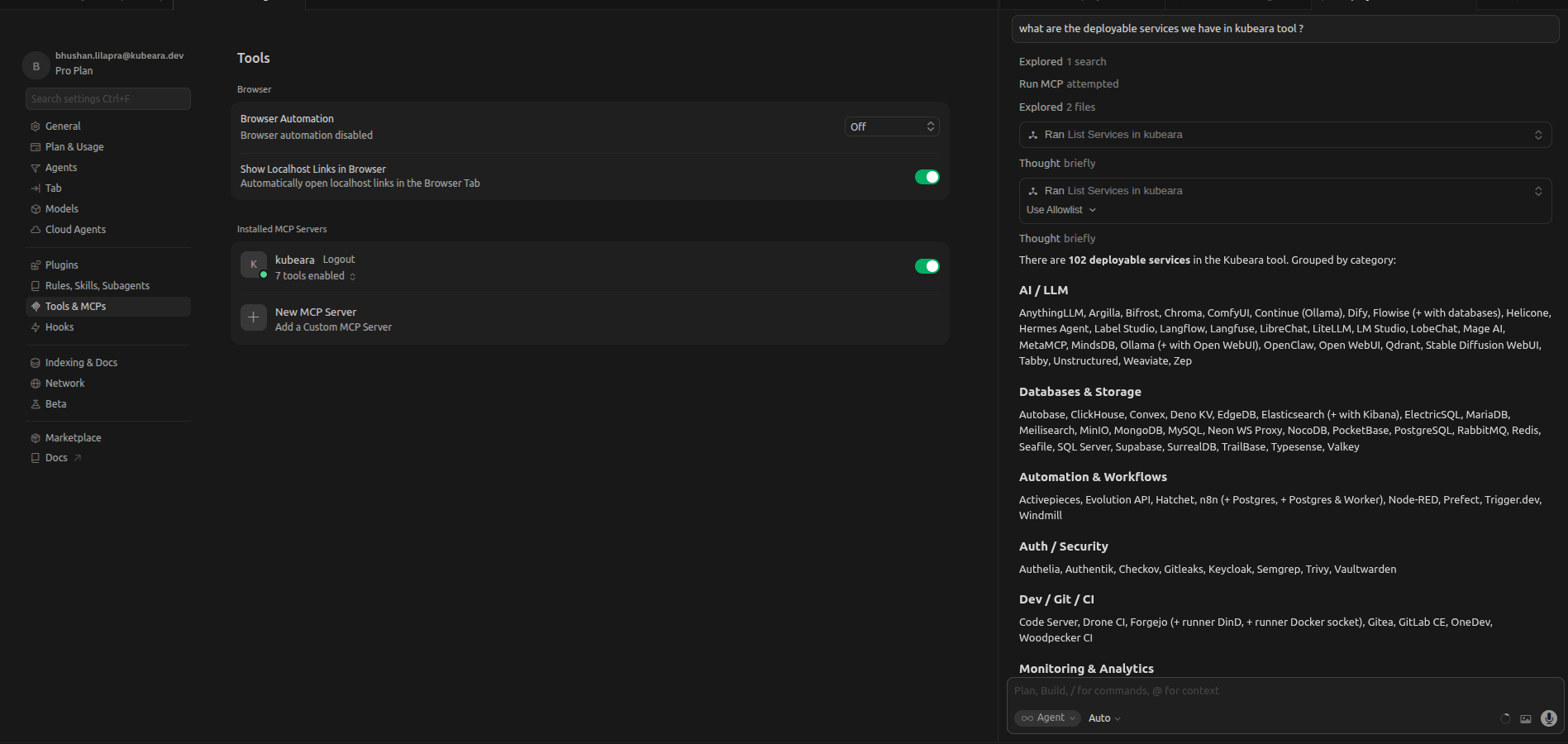
Modern AI-powered code editors do more than generate code—they can interact with external tools, retrieve live information, and assist with development workflows beyond the local project. By connecting these editors to infrastructure platforms, developers can access deployment details, server health, and operational data without leaving their coding environment.
Cursor supports this capability through the Model Context Protocol (MCP). By connecting Cursor to Kubeara, developers can securely access infrastructure data such as server status, deployment information, resource usage, and GPU metrics directly from Cursor's chat interface. This integration reduces context switching and helps keep development and operations within a single workflow.
What is Cursor?
Cursor is an AI-powered code editor built on Visual Studio Code that combines a familiar development experience with advanced AI capabilities. It helps developers write, refactor, debug, and understand code more efficiently while working in their existing projects.
Beyond code assistance, Cursor can connect to external services using MCP. This allows it to retrieve live information from deployment platforms, databases, cloud services, and other developer tools, making it more than just a coding assistant.
How Cursor Uses MCP
Cursor uses the Model Context Protocol (MCP) to communicate with external tools and services. Instead of relying only on your local codebase, Cursor can securely retrieve real-time information from connected MCP servers whenever additional context is needed.
When you ask Cursor a question about your infrastructure, it first determines whether the request requires external data. If the information is available through Kubeara's MCP server, Cursor sends an authenticated request using your configured MCP connection. Kubeara validates the request, retrieves the requested infrastructure data, and returns a structured response. Cursor then presents the results in a natural language response within the chat.
This standardized communication allows Cursor to work with live infrastructure data without requiring custom integrations or manual data sharing.
Why Connect Cursor to Kubeara?
Kubeara is an open-source self-hosted deployment platform for deploying and managing applications, databases, AI models, and other services on your own infrastructure. Connecting Cursor to Kubeara through MCP allows you to access operational information directly from your editor. Instead of switching between the terminal, browser, and deployment dashboard, you can ask Cursor questions in natural language and receive live information from your Kubeara workspace.
Some common tasks include:
- Checking server health and availability
- Viewing deployment status
- Monitoring CPU, memory, disk, and GPU usage
- Listing deployed applications and services
- Reviewing infrastructure resources
Connecting Cursor to Kubeara
Setting up the integration only takes a few minutes.
Prerequisites
- Cursor Desktop installed
- A Kubeara account with MCP enabled
- An MCP token generated from the Kubeara dashboard
Generate an MCP token
In the Kubeara dashboard, open MCP Servers and create a new token. Copy the token—you'll need it in the next step.
Open MCP settings in Cursor
In Cursor, go to Settings → Tools & MCP Servers.
Add the Kubeara server
Click Add MCP Server. Cursor will open the mcp.json file. Paste the configuration below and replace YOUR_TOKEN_HERE with your Kubeara token.
{
  "mcpServers": {
    "kubeara": {
      "url": "https://api.kubeara.dev/api/mcp",
      "headers": {
        "Authorization": "Bearer YOUR_TOKEN_HERE"
      }
    }
  }
}
Save and restart Cursor
Save the file and restart Cursor so the new MCP configuration is loaded.
Verify the connection
Return to Settings → Tools & MCP Servers. If Kubeara shows a green Connected status, the setup is complete. Open Cursor Chat and ask a question about your servers or deployments to confirm that live data is being returned from Kubeara.
Example Prompts
Once connected, you can ask Cursor questions such as:
- What servers are currently running?
- Tell me about the latest deployment and its status.
- Which server is using the most CPU?
- Display current GPU utilization.
- List all deployed applications.
- What services are currently running?
Cursor automatically retrieves the required information from Kubeara and presents it in a conversational response.
Troubleshooting
| Issue | Solution |
|---|---|
| Kubeara doesn't appear in Cursor | Verify that the mcp.json configuration is valid and restart Cursor. |
| Authentication failed | Ensure the MCP token is correct and has not expired or been revoked. |
| Lost your token | Generate a new token from the Kubeara MCP Servers page and update the configuration. |
| Unable to connect | Confirm the MCP endpoint URL is correct and that your internet connection is working. |
Benefits of Connecting Cursor to Kubeara
- Access live infrastructure data directly from Cursor.
- Monitor deployments without leaving your editor.
- View server health and resource utilization in real time.
- Check GPU, CPU, memory, and disk metrics.
- Troubleshoot infrastructure using natural language.
- Reduce context switching between development tools and dashboards.
- Securely access infrastructure through authenticated MCP connections.
Conclusion
Connecting Cursor to Kubeara using the Model Context Protocol extends Cursor beyond code generation into infrastructure-aware development. Instead of switching between terminals, deployment dashboards, and monitoring tools, developers can access live operational data directly within their editor.
By leveraging MCP, Cursor securely communicates with Kubeara to retrieve real-time information about servers, deployments, and system resources. This creates a more efficient development workflow, allowing developers to write code, monitor infrastructure, and troubleshoot deployments from a single interface.