
Introduction
Visual Studio Code (VS Code) is one of the world's most popular code editors, developed by Microsoft. It provides a lightweight yet powerful environment for writing code, debugging applications, managing source control, and using AI-powered development tools such as GitHub Copilot.
While GitHub Copilot can help write and explain code, it cannot directly access your servers or infrastructure. To securely connect Copilot with external services like Kubeara, VS Code uses the Model Context Protocol (MCP).
With MCP, GitHub Copilot can communicate with your Kubeara workspace, allowing it to retrieve deployment information, check server health, monitor resources, and perform infrastructure-related tasks directly from the chat interface.
How VS Code Uses MCP
The Model Context Protocol (MCP) is an open standard that allows AI assistants to securely interact with external tools and services.
In VS Code, MCP acts as a bridge between GitHub Copilot and your infrastructure. Instead of responding only from its training data, Copilot can send requests to an MCP server and receive real-time information from connected systems.
For example, once Kubeara is connected through MCP, you can ask Copilot questions like:
- List all my deployed applications.
- Check the status of my servers.
- Show CPU, memory, or GPU usage.
- View deployment logs.
- Retrieve infrastructure details from Kubeara.
This enables Copilot to provide answers based on your live environment rather than static knowledge.
Why Connect Kubeara to VS Code?
Connecting Kubeara to VS Code allows you to manage your infrastructure without leaving your development environment.
After the connection is established, GitHub Copilot can securely interact with your Kubeara workspace to:
- View deployed applications and services
- Check server and deployment status
- Monitor CPU, memory, disk, and GPU metrics
- Access deployment information
- Answer infrastructure-related questions using live data
This creates a more efficient workflow by combining coding and infrastructure management in a single interface.
Connecting Kubeara to VS Code via MCP
Follow these steps to connect your Kubeara workspace with GitHub Copilot in VS Code.
What You'll Need
- Visual Studio Code installed
- GitHub Copilot extension enabled
- A Kubeara account with MCP Server enabled
- A Kubeara MCP token generated from the MCP Servers page
Step 1: Open the Command Palette
Launch VS Code, open the Command Palette (Ctrl + Shift + P on Windows/Linux or Cmd + Shift + P on macOS), search for MCP: Add Server, and select it.
Step 2: Configure the MCP Server
Choose HTTP as the transport type, enter the Kubeara MCP endpoint: https://api.kubeara.dev/api/mcp — Then provide a name for the server, such as kubeara or Kubeara MCP.
Step 3: Configure Authentication
If VS Code displays a dynamic client registration is not supported message, click Cancel. When mcp.json opens, replace its contents with the Kubeara configuration and update YOUR_TOKEN_HERE with your Kubeara MCP token.
{
  "servers": {
    "kubeara": {
      "type": "http",
      "url": "https://api.kubeara.dev/api/mcp",
      "headers": {
        "Authorization": "Bearer YOUR_TOKEN_HERE"
      }
    }
  }
}
Note: MCP tokens are displayed only once when generated. If you lose your token, create a new one from the MCP Servers page.
Step 4: Save the Configuration
Save the updated mcp.json file to apply your changes.
Step 5: Start the MCP Server
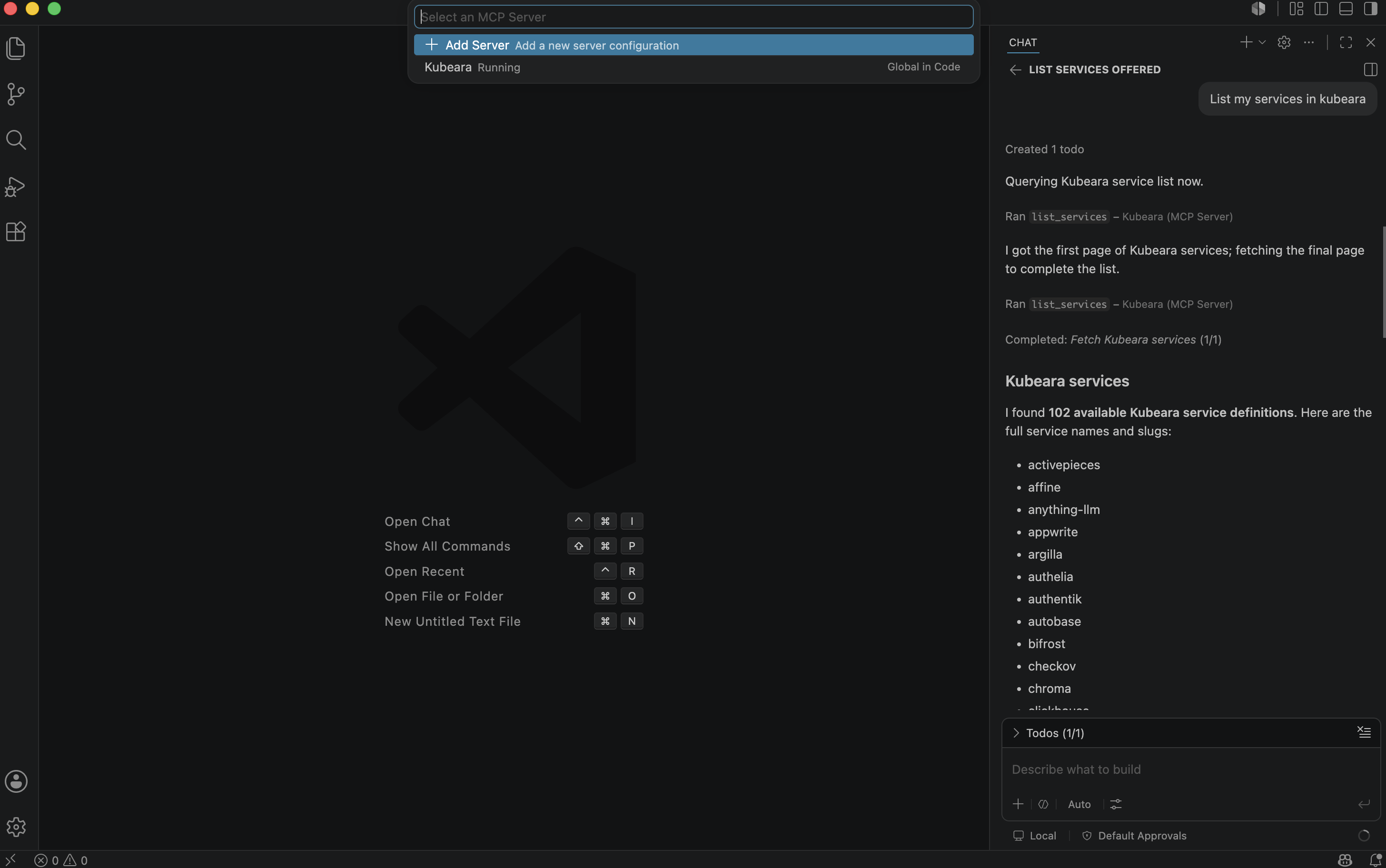
Open the Command Palette, run MCP: List Servers, select your Kubeara server, and click Start Server.
Step 6: Verify the Connection
Open GitHub Copilot Chat and ask a question about your Kubeara infrastructure, such as listing your servers or checking deployment status. If Copilot returns live data from your workspace, the connection has been successfully established.
Troubleshooting
| Issue | Solution |
|---|---|
| Dynamic client registration popup appears | Click Cancel and authenticate using the Bearer token in mcp.json. |
| Kubeara server does not appear | Verify that mcp.json contains valid JSON and the server configuration is correct. |
| Authentication fails | Generate a new MCP token from the Kubeara MCP Servers page and update the Authorization header. |
| Unable to connect | Confirm that the MCP endpoint URL is correct and the server has been started from MCP: List Servers. |
Conclusion
By connecting VS Code to Kubeara through MCP, GitHub Copilot gains secure access to your infrastructure directly within your editor. Instead of switching between dashboards and terminal windows, you can query deployments, monitor servers, review resource usage, and retrieve operational information using natural language. This streamlines development and infrastructure management, allowing you to work more efficiently from a single workspace.